Learn how to accept a request from a Google Ads Manager and give your Google Ads Account access to your account in just a few simple steps.
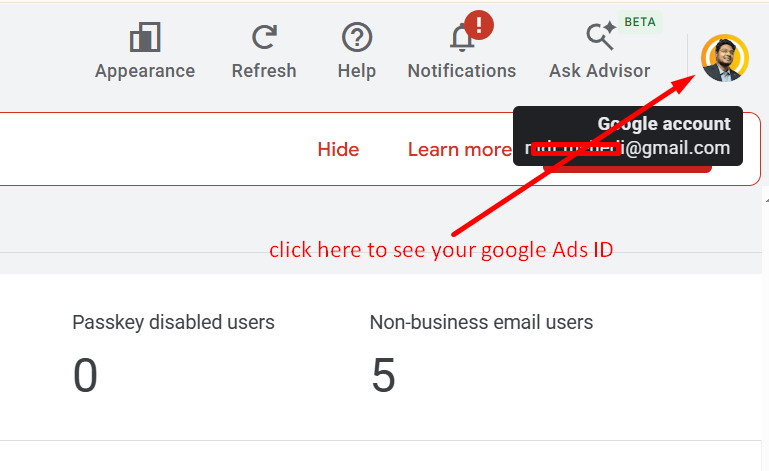
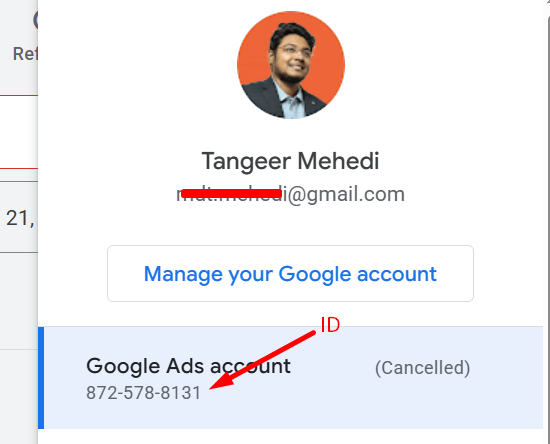
Step 1: Get Your Manager’s Customer ID
First, your Google Ads manager, such as Md Tangeer Mehedi, will send you their 10-digit Manager Account Customer ID and request access to your Google Ads account.
Step 2: Check Your Email
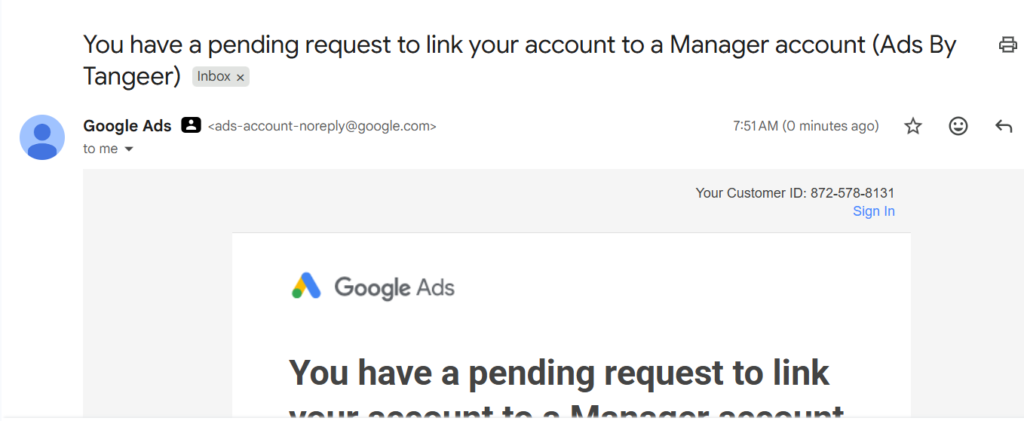
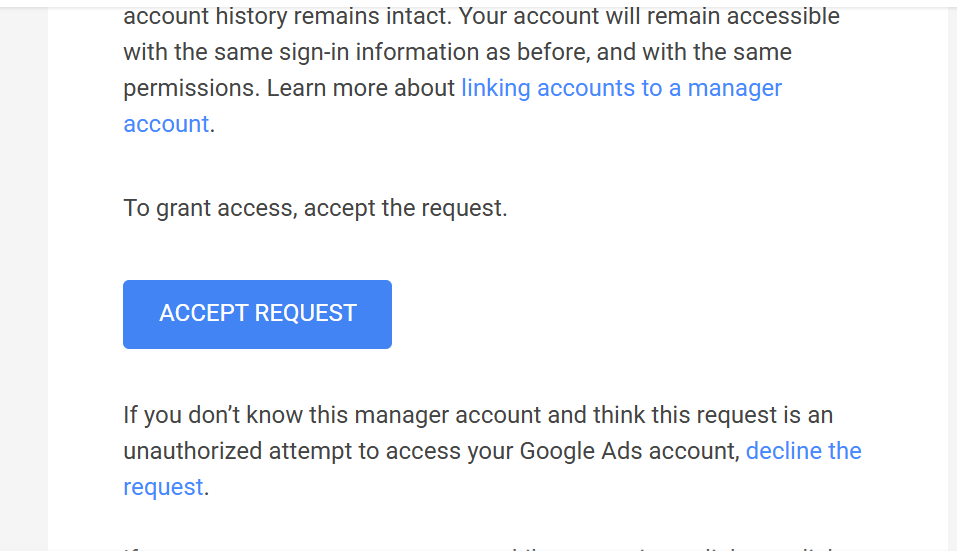
After your manager sends the request, check your email. You should receive an email from Google Ads with the subject:
“You have a pending request to link your account to a Manager account.”
Open the email and click Accept request.
What If You Don’t Receive the Email?
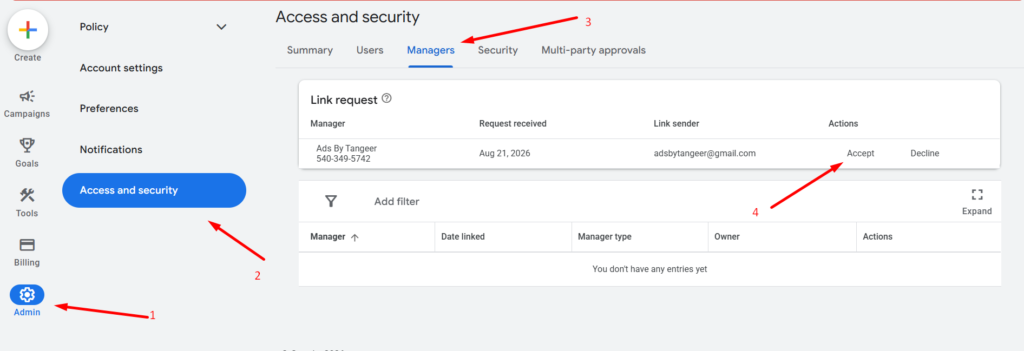
If you don’t notice or receive the email, don’t worry. The access request may still be waiting inside your Google Ads account.
Follow these steps: Go to Admin → Access and security → Managers → Link requests → Accept.
Step 3: Verify Your Identity
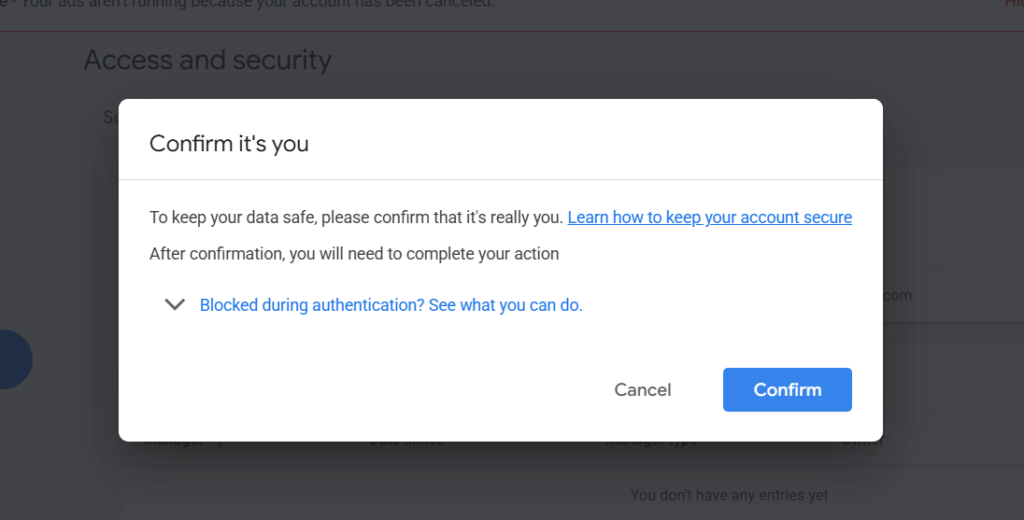
Google may ask you to verify your identity before accepting the manager access request.
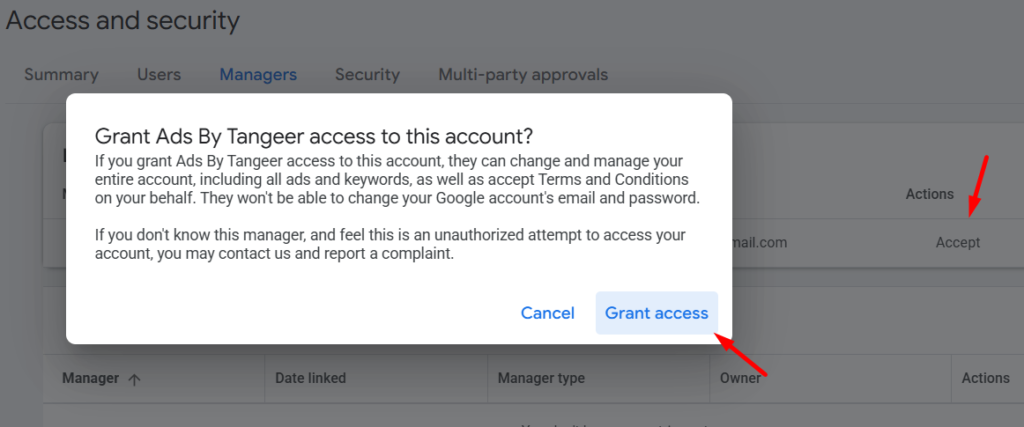
You may see an option to Grant access and receive a verification request on your mobile phone.
Click Grant access, then confirm the request on your phone and enter the verification code if requested.
The request does not complete yet, click Grant access again.
Now your Google Ads account will be linked to the manager’s account.
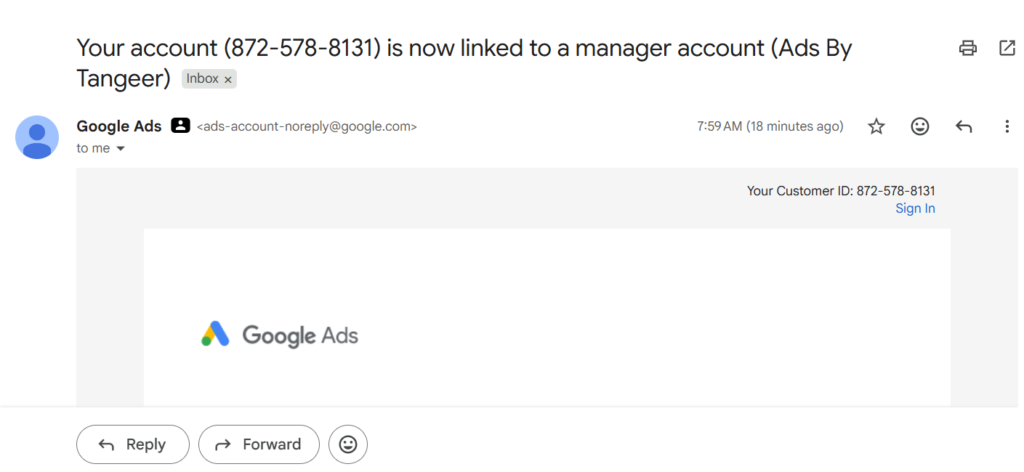
And you will received an email like & Done.